If you’ve ever found yourself copying data from one app to another, sending the same welcome email over and over, or scrambling to update your CRM after every new signup — Zapier was built to solve exactly that. Think of it as a digital bridge that connects all your favorite apps and makes them talk to each other automatically, without you lifting a finger.
The core idea behind Zapier is beautifully simple: “When this happens, do that.” Once you understand that rule, you understand Zapier.
1. The Three Terms You Need to Know
Before you build anything, get comfortable with these three words — they are the entire foundation of how Zapier works.
The Zap is the name for your complete automation. It’s the whole workflow from start to finish, like a recipe that runs on its own. For example, you might call one “The Signup-to-Salesman Zap.”
The Trigger is the “When” part. It’s the event that kicks everything off. For instance — when a new client fills out a form on your website.
The Action is the “Do” part. It’s what happens automatically as a result of the trigger. For example — do add them to your CRM, and do send them a welcome email.
That’s it. Every automation you ever build in Zapier follows this same pattern.
2. A Real-World Example: Handling 500 Daily Signups Without Hiring Anyone
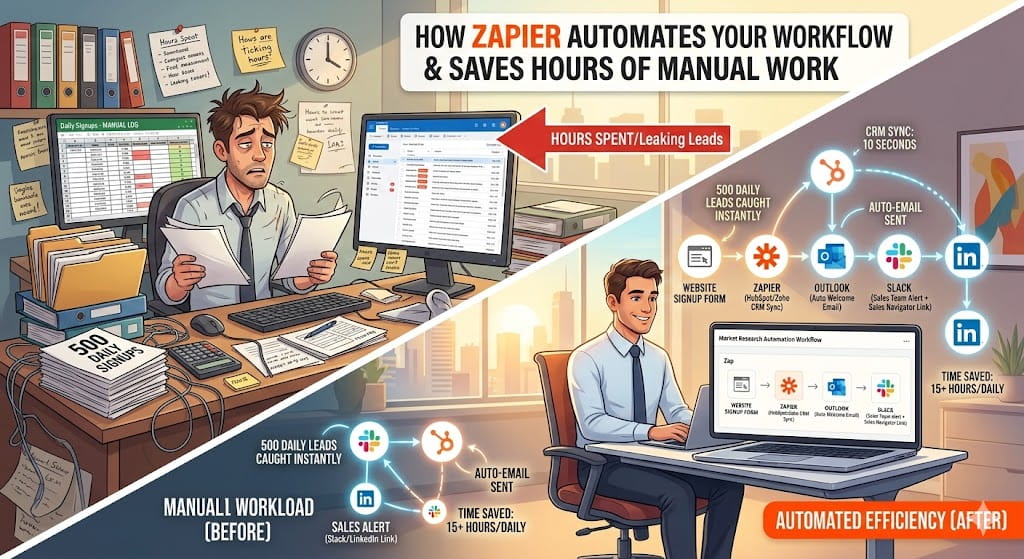
Let’s say you run a market research business and 500 new people sign up to your research panel every single day. Doing that manually — copying names, updating your CRM, sending emails — is not just exhausting, it’s practically impossible. Here’s how a single Zap handles the entire process automatically.
Step A — The Trigger (Someone Signs Up)
When a person fills out your “Join Research Panel” form on your website (built on WordPress, Typeform, or similar), Zapier instantly catches their name, email, and company. This is your trigger. Nothing else needs to happen on your end.
Step B — The First Action (Organize in Your CRM)
The moment the form is submitted, Zapier creates a new lead inside your CRM — whether that’s HubSpot or Zoho. It can even automatically tag that contact as “New Research Lead” so your team immediately knows who this person is and where they came from, without anyone manually categorizing them.
Step C — The Second Action (Send a Welcome Email)
At the same time, Zapier sends a pre-written welcome email from your Outlook or Gmail address. The client receives it within 10 seconds of signing up. From their perspective, it looks like you personally typed and sent it. In reality, you’re not even at your desk.
This is what automation feels like in practice — the client feels personally attended to, and your team never had to touch a keyboard.
3. Using Zapier to Speed Up LinkedIn Outreach
One important thing to know: LinkedIn is a closed platform, which means Zapier cannot send LinkedIn messages or connection requests on your behalf. However, it can make your team dramatically faster at doing it themselves.
Here’s a smart workaround. When a new lead is added to HubSpot, Zapier automatically sends a notification to your team’s Slack channel. That notification includes the lead’s full name and a direct link to their LinkedIn profile. Your team member simply clicks the link, lands on the right profile, and hits “Connect” in Sales Navigator. No searching, no scrolling, no wasted time tracking the person down.
It’s a small automation, but across hundreds of leads a week it saves significant hours.
4. Manual Work vs. Zapier: The Real Difference
SituationWithout ZapierWith ZapierProcessing signupsDownload a list at 5 PM, update manuallyEvery person handled the moment they sign upData accuracyRisk of typos when copying between appsData copied exactly as the client entered itResponse timeClient waits 24 hours for a replyClient gets a reply in 24 secondsTeam focusSales team buried in admin tasksSales team focused only on conversations
The shift isn’t just about speed — it’s about where your team’s energy goes. Zapier handles the repetitive, error-prone tasks so your people can focus on the work that actually requires a human.
5. How to Get Started (Your Quick Checklist)
Getting your first Zap live takes less than 30 minutes. Here’s the exact sequence to follow:
Step 1 — Sign Up: Create a free account at Zapier.com. The free plan is enough to get started and test your first automations.
Step 2 — Connect Your Apps: Link your website (WordPress or Typeform), your CRM (Zoho or HubSpot), and your email (Outlook or Gmail). Zapier will guide you through authorizing each one.
Step 3 — Build Your First Zap: Use the Trigger → Action structure described above. Start simple — one trigger, one action. Once that’s working reliably, add a second action (like the welcome email) to the same Zap.
Final Thoughts
Zapier doesn’t require any coding knowledge, and you don’t need to be technical to use it effectively. What it does require is a clear understanding of your own workflow — knowing what happens, in what order, and what should be triggered by what.
Once you map that out, Zapier becomes one of the most powerful tools in your stack. It’s not about replacing your team. It’s about removing the repetitive work that slows them down, so every person on your team is focused on what they do best.
Yes, Zapier offers a free plan that allows you to create up to five single-step Zaps and run up to 100 tasks per month. This is more than enough to get started and test your first automations. For more advanced workflows with multiple actions or higher task volumes, paid plans start from around $19.99 per month.
Not at all. Zapier is built specifically for non-technical users. Everything is done through a visual, point-and-click interface. If you can fill out a form online, you can build a Zap.
Zapier currently connects with over 6,000 apps, including popular tools like Gmail, Outlook, HubSpot, Zoho, Slack, WordPress, Typeform, Google Sheets, Salesforce, and many more.
A Zap is a single automation that follows one Trigger and one or more Actions. A Workflow (available on higher plans) is a more advanced version that allows conditional logic — for example, “if the lead is from the US, do this; if they’re from the UK, do that.”
Zapier is highly reliable, but it depends on your app connections staying active and your account having enough tasks available in your plan. As long as your integrations are properly authorized and your plan supports your task volume, it runs consistently without missing entries.
Yes. Zapier uses industry-standard encryption to transfer data between apps. It does not store your data permanently — it simply reads it from one app and passes it to another. For businesses handling sensitive client information, Zapier also offers enterprise-grade security options on higher plans.
Zapier handles repetitive, rule-based tasks extremely well — things like data entry, notifications, and sending templated emails. It cannot replace the judgment, creativity, or relationship-building that a human brings. Think of it as a tireless assistant that handles the boring tasks so your team can focus on higher-value work.
If an app experiences downtime, Zapier will typically retry the task automatically once the app is back online. You can also set up error notifications, so you’re alerted immediately if a Zap fails, allowing you to fix it quickly.
Not directly. LinkedIn restricts third-party automation tools from sending messages or connection requests on your behalf. However, as explained in this guide, you can use Zapier to send your team instant Slack notifications with a direct LinkedIn profile link, making manual outreach much faster and more organized.
Both tools do similar things, but Zapier is generally easier for beginners due to its simpler interface and larger app library. Make offers more advanced logic and is more flexible for complex workflows, but has a steeper learning curve. For most small to mid-sized business users, Zapier is the better starting point.